Wi-Fi Navi: Best App for Network Diagnostics & Speed Testing
In today’s digital age, a reliable and high-speed internet connection is essential. Whether you are working remotely, streaming content, or managing a network, having an efficient and optimized wireless network can make all the difference. But network issues—such as slow speeds, intermittent connectivity, or high latency—are common problems that often disrupt our online activities. These issues can be caused by a range of factors including router misconfiguration, interference, or simply outdated hardware.
Thankfully, there’s a solution to simplify troubleshooting and enhance your wireless network experience. The Wi-Fi Navi app is a comprehensive, powerful, and user-friendly tool that helps network administrators, system engineers, and everyday users diagnose, troubleshoot, and optimize their internet connections. This free app offers a wide range of essential network diagnostic features that can detect issues, analyze performance, and guide you in improving your internet experience.
In this article, we’ll walk you through the impressive features of the Wi-Fi Navi app, explain how to download and use it, and highlight the benefits of using it to enhance your network performance. Whether you’re an experienced network professional or a novice looking to solve your internet issues, Wi-Fi Navi has something to offer.
Why Choose Wi-Fi Navi App for Network Diagnostics?
Before diving into the app’s features, let’s explore why Wi-Fi Navi is the ideal choice for diagnosing network issues and optimizing performance.
Easy to Use
Whether you are a tech expert or a home user, Wi-Fi Navi’s intuitive interface makes it easy to understand and use. You don’t need advanced knowledge of networking protocols or jargon. The app is designed to deliver clear and actionable insights, with an emphasis on simplicity and ease of navigation.
Free of Charge
One of the standout features of Wi-Fi Navi is that it is free to download and use. You can access a wide array of powerful network tools at no cost, which is ideal for users who need to perform essential network diagnostics without investing in expensive software or hardware.
Comprehensive Network Testing
Wi-Fi Navi offers a variety of testing features that go beyond basic speed tests. With this app, you can perform tests on various aspects of your network connection, including speed, latency, device management, and more. This helps you pinpoint issues that may be affecting your Wi-Fi performance, allowing for targeted troubleshooting and improvements.
Works Across Devices
Whether you’re using a smartphone, tablet, or other mobile device, Wi-Fi Navi is compatible with most operating systems, including Android and iOS. This means you can test and monitor your network performance across all your devices.
Download & Install Wi-Fi Navi App on Your Andriod & iOS
Getting started with Wi-Fi Navi is simple. Follow these easy steps to download and install the app:
For Android Users:
Open the Google Play Store on your Android device.
In the search bar, type “Wi-Fi Navi” and tap on the search button.
Select the Wi-Fi Navi app from the search results.
Tap Install to begin downloading and installing the app.
Once the installation is complete, open the app and start using it to analyze your network.
For iOS Users:
Open the App Store on your iPhone or iPad.
In the search tab, type “Wi-Fi Navi” and search for the app.
Tap the download icon to install the app.
After installation, open the app and begin testing your network connection.
Once the Wi-Fi Navi app is installed, you’re ready to start diagnosing and optimizing your network. Let’s look at the key features that will help you get the most out of the app.
Key Features of the Wi-Fi Navi App
1. Test Internet Upload and Download Speeds
One of the most common concerns for internet users is slow speeds. Whether you’re streaming movies, working from home, or gaming online, a slow connection can cause frustration and disrupt your experience. With Wi-Fi Navi, you can easily test your upload and download speeds to determine if you’re getting the speeds promised by your internet service provider (ISP).
Download Speed: The app tests how quickly data is being transferred from the internet to your device.
Upload Speed: This test measures how fast data can be uploaded from your device to the internet.
Ping Test: Wi-Fi Navi also tests your network latency (ping), which measures the responsiveness of your connection. High ping times can affect real-time applications like online gaming or video calls.
By running these tests, you can quickly determine if your internet speed is slower than expected, which may point to network issues such as bandwidth throttling or a weak Wi-Fi signal.
2. Analyze Network Latency and Troubleshoot Issues
Network latency, or ping time, plays a critical role in online activities such as gaming, streaming, and video conferencing. High latency can result in lag, buffering, and delayed interactions. Wi-Fi Navi allows you to analyze network latency and diagnose potential issues.
Low Latency: Ideal for activities like gaming or video conferencing, low latency ensures a seamless experience.
High Latency: High latency can cause delays and interruptions, making it essential to identify the root cause and take corrective action.
The Wi-Fi Navi app provides a simple and accurate way to monitor your latency in real-time, enabling you to identify when and where latency spikes occur. This can be especially helpful for troubleshooting Wi-Fi interference or identifying network congestion issues.
3. Improve Wireless Network Deployment
If you’re a network administrator or system engineer, Wi-Fi Navi can help you optimize your wireless network deployment. With comprehensive tests, the app can evaluate factors that impact your Wi-Fi coverage, such as signal strength and roaming capabilities.
Signal Strength Testing: Wi-Fi Navi can analyze the signal strength in different areas of your home or office to identify weak spots or areas of interference.
Roaming Tests: The app evaluates how well your devices roam between access points, helping you optimize the placement of routers or access points for improved coverage and seamless transitions between networks.
By running these tests, you can enhance your wireless network deployment and ensure that your devices enjoy consistent and strong connections throughout your space.
4. Perform TCP and UDP Performance Tests
TCP (Transmission Control Protocol) and UDP (User Datagram Protocol) are two common types of data transmission protocols used for different purposes on the internet. TCP is often used for reliable, connection-oriented communication, while UDP is typically employed for faster, connectionless communication.
Wi-Fi Navi provides tests for both protocols, allowing you to assess their performance and identify potential issues that might affect data transmission. These tests can help you troubleshoot issues related to specific applications that rely on either protocol, such as video streaming (UDP) or web browsing (TCP).
5. Network Device Detection
If you’re managing a home or office network, knowing which devices are connected to your network is essential for maintaining security and performance. Wi-Fi Navi allows you to quickly find all devices connected to the same network and retrieve essential information, including:
IP Address
MAC Address
Device Name
Device Type (smartphone, computer, tablet, etc.)
This feature helps you identify unauthorized devices, track network usage, and ensure that only trusted devices are connected to your network. By keeping an eye on the devices in your network, you can also detect potential security vulnerabilities.
6. Ping and Trace Route Tests
Wi-Fi Navi makes it easy to test your network connection to specific target services using Ping and Trace Route tools. These tools help you trace the path between your device and a target server, allowing you to identify potential bottlenecks or failures along the route.
Ping Test: Sends packets to a target server and measures the time it takes to receive a response. This is helpful for troubleshooting connectivity or latency issues.
Trace Route Test: Traces the exact route that data takes from your device to the target server, showing all intermediate hops. This can help you diagnose where delays or packet loss are occurring in the network path.
Both tools provide invaluable insights into your internet connection’s health and help pinpoint the root causes of connectivity issues.
Benefits of Using Wi-Fi Navi for Network Optimization
By regularly using Wi-Fi Navi, you can enjoy several benefits that will improve your network performance and online experience:
Faster Internet Speeds
With the ability to test your connection’s speed and latency, you can identify issues that are slowing down your internet and take steps to address them.
Improved Wi-Fi Coverage
The app helps you optimize your wireless network deployment, ensuring that your devices have a strong and reliable signal throughout your home or office.
Better Troubleshooting
Wi-Fi Navi’s comprehensive tests allow you to diagnose a wide range of issues, from slow speeds to high latency and poor device performance. With actionable insights, you can resolve problems quickly.
Enhanced Security
By detecting devices connected to your network, Wi-Fi Navi helps you maintain network security and ensures that unauthorized devices are not consuming bandwidth or accessing sensitive information.
Peace of Mind
With its wide array of diagnostic tools, Wi-Fi Navi gives you peace of mind, knowing that you can quickly identify and fix network issues before they become a major problem.
Latest Updates to Wi-Fi Navi App: What's New
Here are the latest updates to the Wi-Fi Navi app:
Enhanced Speed Test Features: Wi-Fi Navi now includes multi-server testing for more accurate speed assessments and real-time bandwidth monitoring, letting users observe fluctuations in upload and download speeds. A speed test history log tracks performance trends over time.
Latency & Network Optimization Tools: The app introduces latency heatmaps to visually identify network lag hotspots and automatic optimization suggestions to improve your network’s speed and stability.
Advanced Device Detection & Security: Users can now view detailed device information (e.g., type, OS, usage), with real-time device alerts for new connections. A security audit tool scans for vulnerabilities, offering security improvement recommendations.
Improved Wi-Fi Coverage: A new interactive signal strength map helps optimize router placement. The app now supports mesh network diagnostics, allowing users to monitor performance across all nodes.
Ping & Trace Route Upgrades: Ping alerts notify users when latency exceeds thresholds, and trace route data now includes hop-specific info, pinpointing issues in network routes.
UI Improvements: The app now supports dark mode, a redesigned dashboard, and multi-language support for a more personalized user experience.
These updates make Wi-Fi Navi an even more powerful and user-friendly network diagnostic tool.
Frequently Asked Questions (FAQs)
1. What is Wi-Fi Navi?
Wi-Fi Navi is a free app that helps you test, diagnose, and optimize your Wi-Fi network. It includes tools to check internet speeds, monitor latency, and detect devices on your network.
2. How do I download Wi-Fi Navi?
You can download Wi-Fi Navi for free from the Google Play Store (for Android) or the App Store (for iOS).
3. What devices can I use Wi-Fi Navi on?
Wi-Fi Navi works on smartphones and tablets with Android or iOS operating systems.
4. How does the speed test feature work?
The app measures your internet download and upload speeds and checks latency (ping) by sending data to and from a remote server. It shows how fast your connection is.
5. What is latency, and why is it important?
Latency is the time it takes for data to travel from your device to a server and back. Lower latency means faster and smoother online activities like gaming and video calls.
6. Can Wi-Fi Navi help me find devices on my network?
Yes, Wi-Fi Navi can show you a list of all devices connected to your network, including their IP addresses, MAC addresses, and device names.
7. What is a Ping Test?
A Ping Test sends packets of data to a server and measures how long it takes for the data to return. It helps check network responsiveness.
8. How do I optimize my Wi-Fi with Wi-Fi Navi?
Use the signal strength mapping and network optimization suggestions to improve Wi-Fi coverage and reduce lag or slow speeds.
9. Is Wi-Fi Navi free to use?
Yes, Wi-Fi Navi is completely free to download and use with no hidden fees.
10. Can Wi-Fi Navi help with security?
Yes, the app includes device detection and a security audit tool to check for vulnerabilities and help you keep your network secure.
Conclusion: Optimize Your Network with Wi-Fi NaviIn an era where a stable and fast internet connection is crucial, Wi-Fi Navi App is a must-have tool for anyone looking to enhance their network performance. Whether you’re dealing with slow speeds, high latency, or network interference, this app provides the tools you need to troubleshoot and optimize your Wi-Fi connection effectively.
Wi-Fi Navi’s diverse set of features, including speed tests, latency analysis, device management, and protocol testing, make it an invaluable resource for both home users and IT professionals. By using the app regularly, you can ensure that your network is running at peak efficiency, enabling a better online experience whether you're working, gaming, streaming, or simply browsing the web.
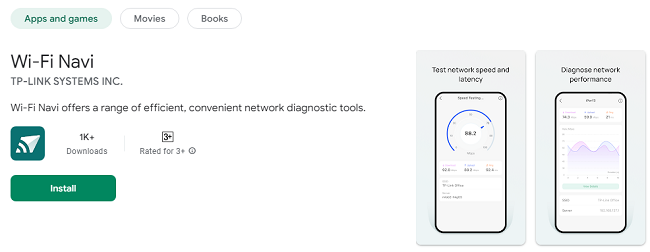
Updates